The Adventurers: How to Make a Mod
Start with the tutorial mod, point a Steam Workshop uploader at The Adventurers, and edit the tutorial data to make your own package. The game’s Steam App ID is 3062500. Once the content is ready, create its Workshop item, add the listing details and preview image, submit it, then check the item on The Adventurers Workshop page.
The shortest route is to prepare the uploader’s steam_appid.txt and config.json, create a named content folder through the uploader, and copy the tutorial mod files into that folder. Those files expose settings for abilities, classes, combat actions, creatures, fort buildings and requests, items, quests, and towns. The tables below explain what each available field controls.
Get the tools and tutorial files
The example uploader is SteamWorkshopUploader, whose repository provides a downloadable Windows ZIP. This is third-party software and is not endorsed here. An executable from an outside source can be unsafe, so review the repository and release, scan the downloaded archive, and run it only if you accept that risk. Other Workshop uploaders may offer similar functionality.
Download the The Adventurers tutorial mod from its Steam Workshop page as well. It provides the editable files and shows how they map to the game. At the time of writing, those files cover the settings documented below.
After downloading the uploader, extract its ZIP. Two files in the extracted directory need attention before you build the mod:
| File | What to change |
|---|---|
steam_appid.txt | Set the value to The Adventurers App ID, 3062500. |
config.json | Enter the information for the mod, including applicable categories such as gameplay or art. |
Create the mod package
Open the Steam Workshop uploader. Type the mod name in the box at the lower left, then select Create Item. The name becomes the package name, so a name such as testAdventurersMod produces a matching content folder under SteamWorkshopUploader\WorkshopContent\testAdventurersMod.
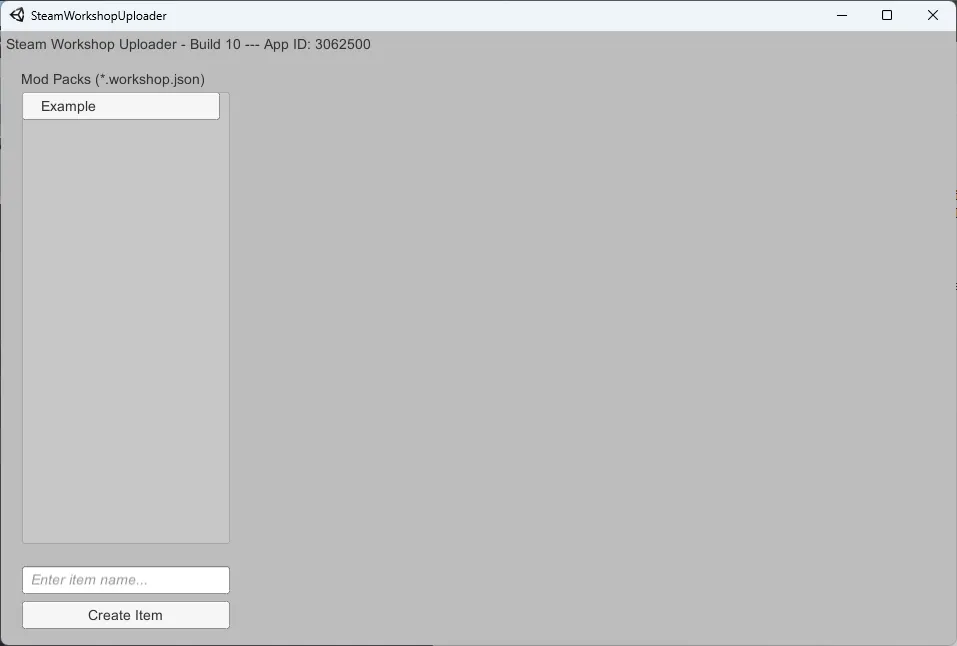
Copy the tutorial mod files into the newly created folder. Edit those copies to change the game data. Keep to the IDs and accepted values provided by the tutorial files, especially for class abilities and fields with fixed option lists.
Abilities
The ability data exposes a Modifier value. This is the normal multiplier used by the ability. A value of 1.1, for example, represents a 10 percent bonus; changing it to 1.3 changes that multiplier to 1.3.
Classes
The tutorial’s Abilitiy List field controls the abilities assigned to a class. You can combine the supplied IDs to make class variants. General abilities are usually passive, while class abilities tend to be combat-focused. Changing class-specific abilities or pairing abilities from different classes can create combinations such as a warrior with battle-mage features. Stay within the IDs provided in the tutorial data.
Combat Actions
| Field | What it controls |
|---|---|
| Range | How far from the active character the action may be used. |
| Damage | Base damage before modifiers such as Strength and Resolve are applied. |
| Duration | The number of rounds for which the action’s effect remains active. |
| Personal Duration | The number of rounds an effect lasts on its user when that timing differs from the target duration. |
| Energy Cost | Energy spent before penalties from worn equipment are applied. |
Creatures
Creature data covers portraits, core combat values, damage reactions, AI roles, targeting, and terrain handling.
| Field | What it controls |
|---|---|
| Portrait Location | Relative path inside the mod folder for the replacement combat portrait, mainly used in the turn-order display. |
| Override Portrait | Set to true to replace the default portrait. Leave it false to keep the original. |
| Max HP | Creature’s maximum health. Random modifiers may vary the result, but this value sets its overall range. |
| Speed | Number of tiles the creature can move in combat, subject to how it handles difficult terrain. |
| Parry | Creature’s ability to parry attacks. |
| Dodge | Creature’s ability to dodge attacks. |
| Block | Creature’s ability to block attacks. |
| Regen | Health restored between combat rounds. |
The four resistance slots, Resist 0, Resist 1, Resist 2, and Resist3, each accept a damage type. Damage of the selected type is halved. The four weakness slots, Weak 0, Weak 1, Weak 2, and Weak 3, use the same option list, but the selected damage type is doubled instead.
Valid resistance and weakness entries are None, Bash, Pierce, Slash, Acid, Fire, Ice, Lightning, Magic, Necrotic, Poison, Radiant, and Physical.
| Field | What it controls |
|---|---|
| Primary Role | Combat brain used by the creature. Accepted values are Healer, Leader, Rusher, and RangeAttacker. |
| Permanent Effect | Combat action effect that stays active at all times. Example values are Crazy, Disengager, Enrage, HealingAura, HeavyAttacks, LeaderEffect, None, PackTactics, Resilient, and Unstoppable. |
| Half Health Effect | Effect activated at half health. It can use the same effect list as Permanent Effect and is commonly used for effects such as Enrage. |
| Target Behavior | Rule set used to choose the next target. Accepted values are feral, brutal, tactical, and strategic. |
| Can Impact Difficult Terrain | Whether difficult ground such as mud or sand slows the creature. Use 0 when terrain should not affect it, as is typical for a flying creature, and 1 when the effect is enabled. |
Each Target Behavior value uses a different priority. feral chooses the nearest enemy or the last attacker. brutal looks for the most damaging enemy, then favors warriors or paladins if no such target exists. tactical goes after healers first, followed by mages, ranged characters, and tank classes. strategic weighs threat, healing and damage in combat, armor, and class priority.
Fort Buildings
| Field | What it controls |
|---|---|
| Price | Gold required to construct the building. |
| Construction Time | Number of days needed to finish the building. |
Fort Requests
Fort request fields set the force requirements, completion time, failure costs, success rewards, and mission danger.
| Field | What it controls |
|---|---|
| Knights | Number of knights that must be sent. |
| Soldiers | Number of soldiers that must be sent. |
| Archers | Number of archers that must be sent. |
| Duration | Number of days required to fulfill the request. |
| Food Penalty | Food lost when the request fails. |
| Health Penalty | Health lost when the request fails. |
| Morale Penalty | Overall morale lost when the request fails. |
| Gold Reward | Gold awarded for success. |
| Morale Reward | Overall morale gained for success. |
| Danger | Request difficulty. This affects the chance of losing troops each hour. The request fails if every unit sent is lost. |
Items
Item fields cover the displayed icon, prices, damage, recovered materials, crafting costs, enchantments, and stack size.
| Field | What it controls |
|---|---|
| Icon | Relative path to the image used for the item. |
| Override Icon | Set to true to replace the item’s default icon. |
| Buy Amount | Base purchase cost before price modifiers. |
| Sell Amount | Base gold received on sale before modifiers. |
| Repair Amount | Repair cost for each point of durability. |
| Min Damage | Minimum base damage before modifiers. It must be less than or equal to Max Damage. |
| Max Damage | Maximum base damage before modifiers. It must be greater than or equal to Min Damage. |
| Iron Smelt | Iron recovered by smelting the item. |
| Hide Smelt | Hides recovered by smelting the item. |
| Iron Cost | Iron required to craft the item. |
| Hide Cost | Hides required to craft the item. |
| Wood Cost | Pieces of wood required to craft the item. |
| Default Enchantment | Enchantment already present when the item is created or obtained. This can be overridden. |
| Enchantment Slot 0 | Optional enchantment slot, usually filled after visiting the enchanter. It can be overridden but is not commonly used. |
| Enchantment Slot 1 | Second optional enchantment slot with the same behavior and accepted values. |
| Enchantment Slot 2 | Third optional enchantment slot with the same behavior and accepted values. |
| Stack Amount | Maximum number of this item in a stack. |
The four enchantment fields accept None, Strength, Vitality, Resolve, Charisma, Luck, Agility, CriticalChance, HitChance, BlockChance, Dodge, Parry, EnergyRecovery, Health, Energy, MagicResistance, Regen, Damage, ArmorBonus, Durability, and Duration.
Quests
| Field | What it controls |
|---|---|
| Difficulty | Quest or contract category. Accepted values are Easy, Medium, and Hard. |
| Exp Reward | Extra experience awarded when the quest or contract is completed. |
| Coin Reward | Gold awarded on completion. |
| Coin Loss | Gold deposited when taking the quest or contract. |
| Renown Reward | Renown or reputation awarded on completion. |
Towns
The Prosperity field sets a town’s starting prosperity when it is created. Prosperity affects the town’s default crafted items and the quality of goods shown. The maximum value is 200000.
Add the Workshop listing details
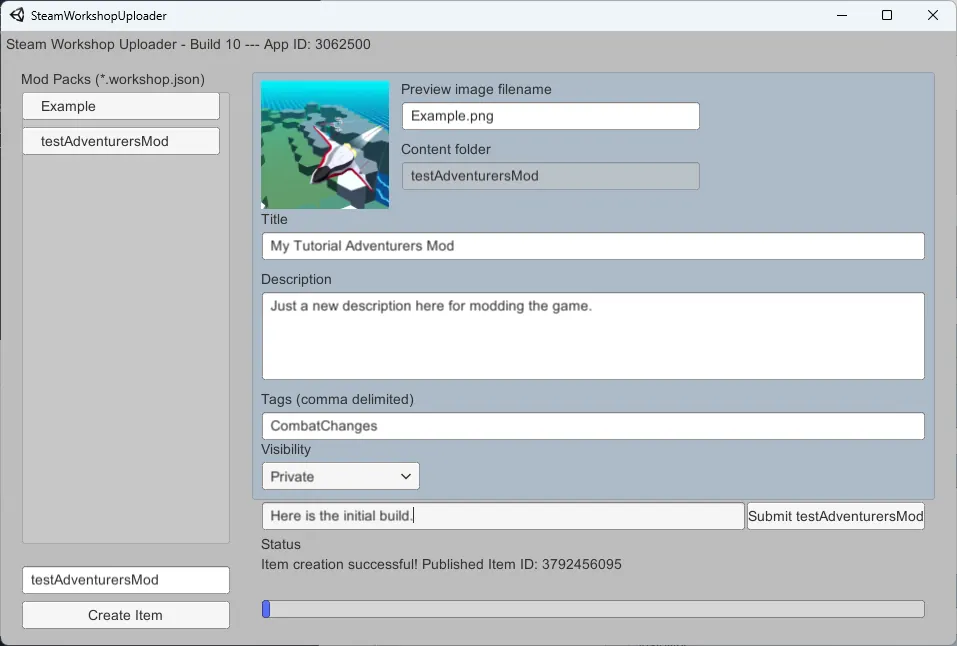
Select the mod in the uploader after its package has been created. The right side of the window contains the preview image filename, content folder, title, description, comma-separated tags, and visibility controls. A change-note field and the submit control appear along the bottom.
Fill in a preview image filename, title, description, and any relevant tags. Add a change note for this upload. The content folder should point to the package that contains the tutorial files you copied and edited.
Submit and find the mod
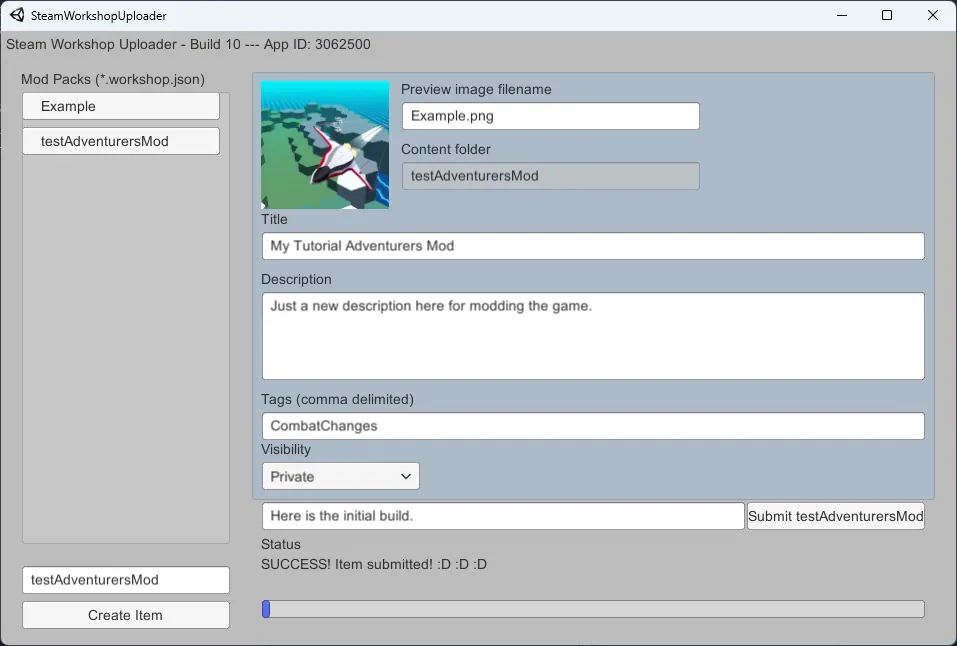
When the files and listing details are ready, select the Submit button at the lower right. A successful submission is reported in the uploader’s status area.
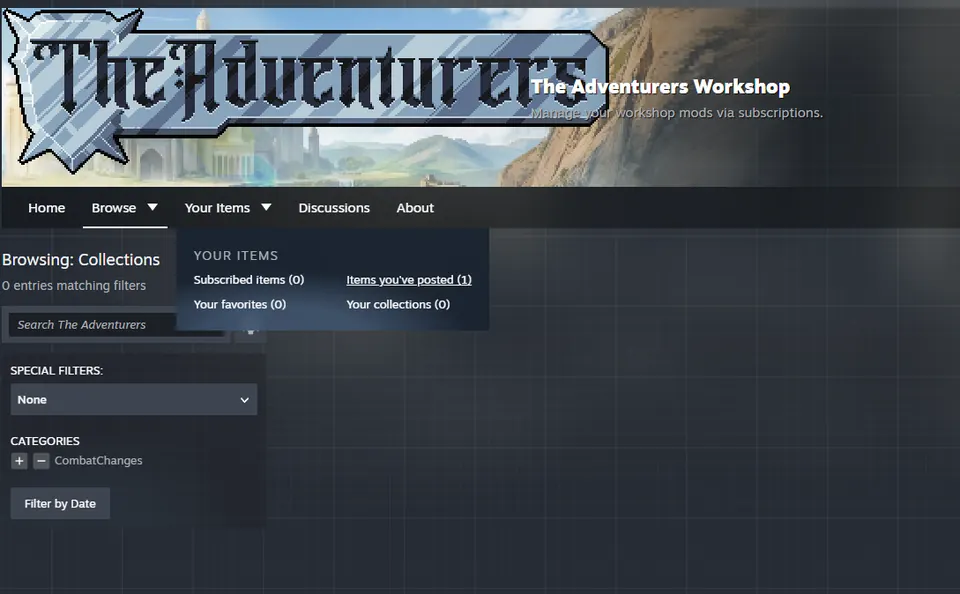
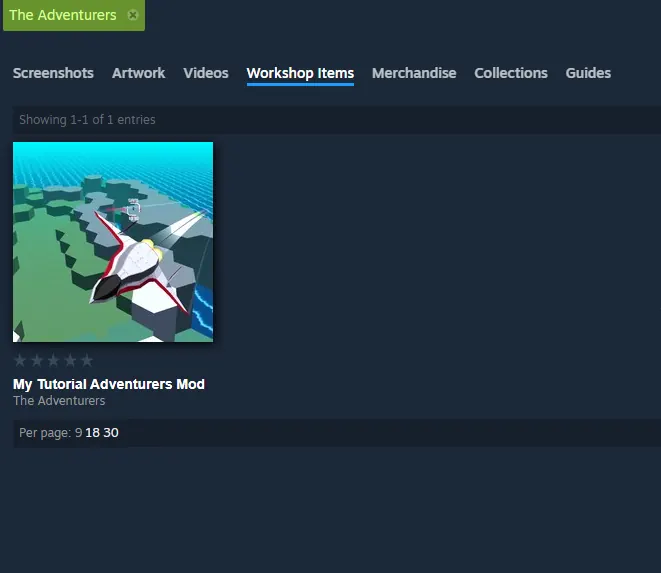
Open The Adventurers Steam Workshop to locate the item. In the Workshop navigation, open Your Items and choose Items you’ve posted. The submitted mod should appear as a Workshop item with its preview, title, and game name. Review that listing to decide whether it is ready to publish or whether the files and details need more changes.
More The Adventurers guides
-
classesThe Adventurers: All Classes and Abilities
All eight classes in The Adventurers, with every class ability, all general abilities, and a clear breakdown of what each attribute affects.
Published September 12, 2026