Din's Champion: How to Find Quest Targets
The quest menu at your Lifestone is where Din’s Champion hands you work, and where most of that work gets turned back in. It does not show you everything it has, and the targets it sends you after do not always stay where it says they are.
The short version:
- Hidden quests: untick “Only known locations” at the top of the Lifestone list.
- Target’s area: open the accepted quest and press its map screen button.
- Target has moved: pay for Search for Target and it drops a waypoint.
- Clan work: hand it back at that clan’s Relations screen, not at your Lifestone.
Show all quests: untick “Only known locations”
As of the launch build, the Lifestone quest menu opens with a filter already on, so it does not always show all the available quests. Anything set somewhere you have not visited yet is left out, an area can look far thinner than it really is, and you can walk past content because nothing ever told you it was there.
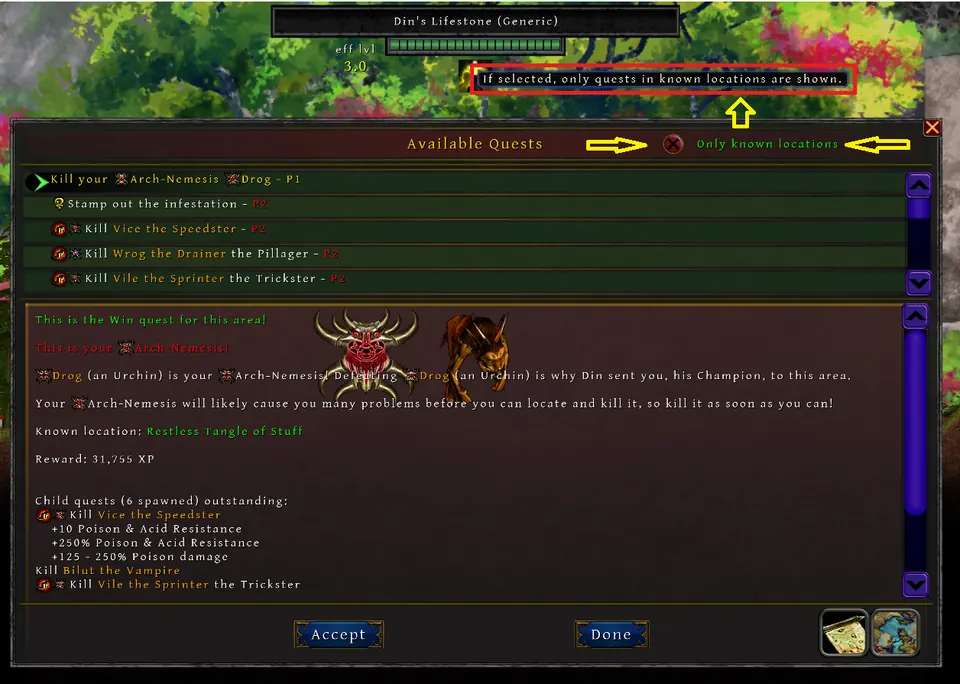
Untick “Only known locations” at the top of the Available Quests panel to clear that filter. The hidden entries then appear in the list beside the ones you already had, including quests in places you have never set foot in.
Find your quest target: the map screen button
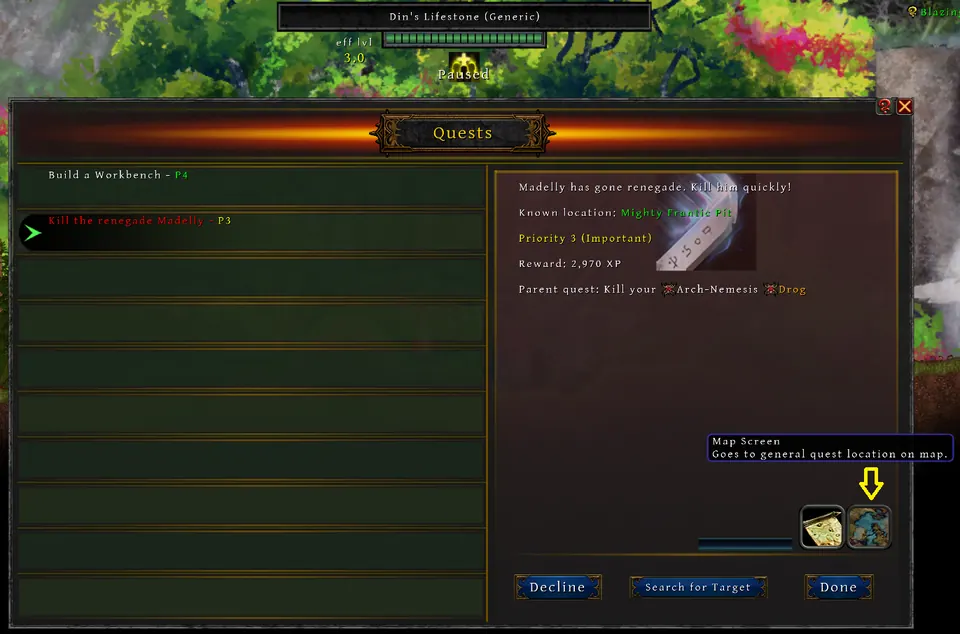
Accepting a quest does not mean combing the whole map by hand. Open the quest and press its map screen button, which as of the launch build sits in the bottom right corner of the panel. It takes you to the general area where your quest target should be.
Search for Target: when the target has moved
Sometimes you arrive and nothing is there. Some targets move around on their own, and one can wander well away from where the quest placed it, including into terrain you have to go around.
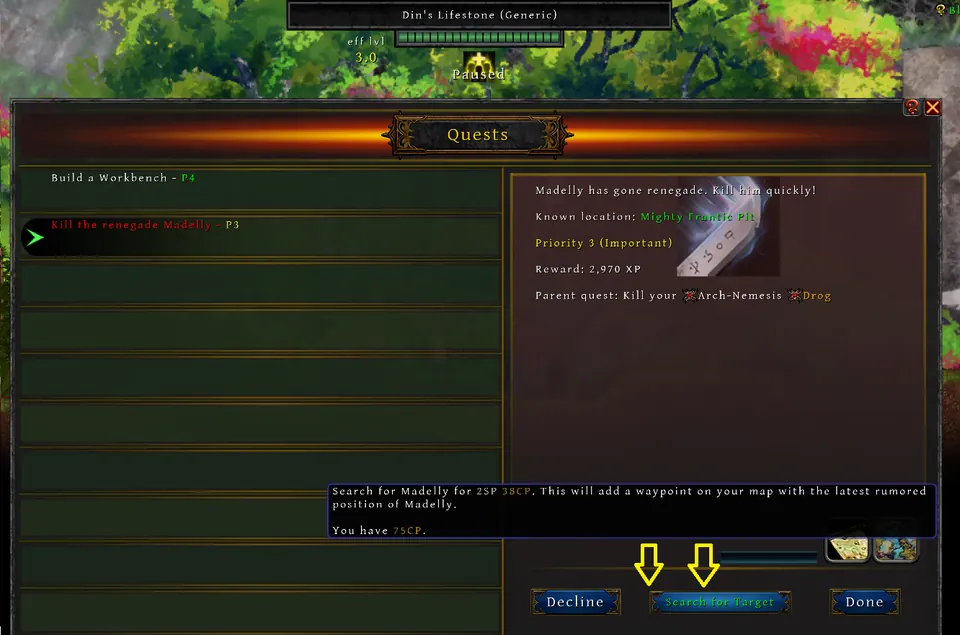
Search for Target, on the row of buttons along the bottom of the quest menu, is the answer to that. It will cost coin, and the tooltip gives you the price and the coin you are carrying before you agree to it, so make sure you can cover it. Paying will mark the target’s current approximate location on your map with a waypoint, drawn from the latest rumour of where it is.
Where to turn in clan quests
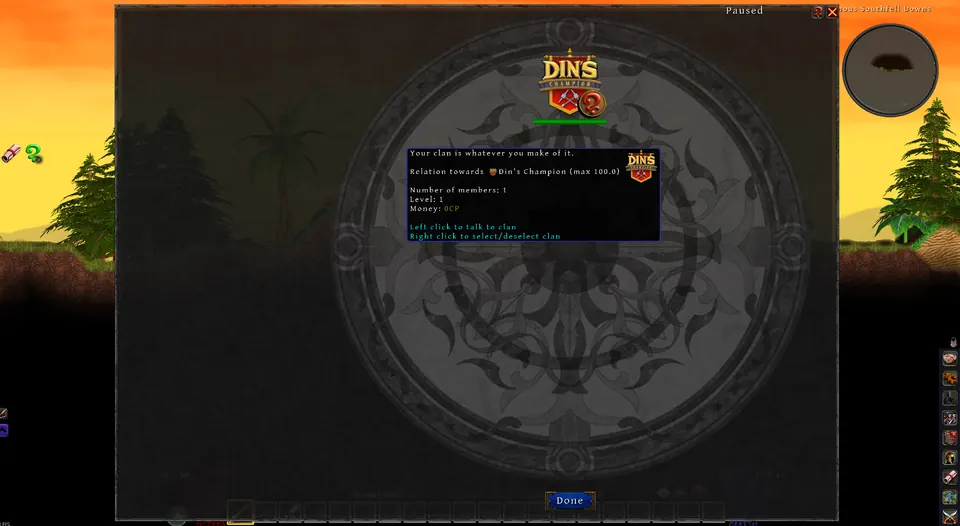
Other clans are out in the world running their own business, and once you have discovered one you deal with it through the Relations menu. As of the launch build its button sits in the toolbar down the right side of the screen.
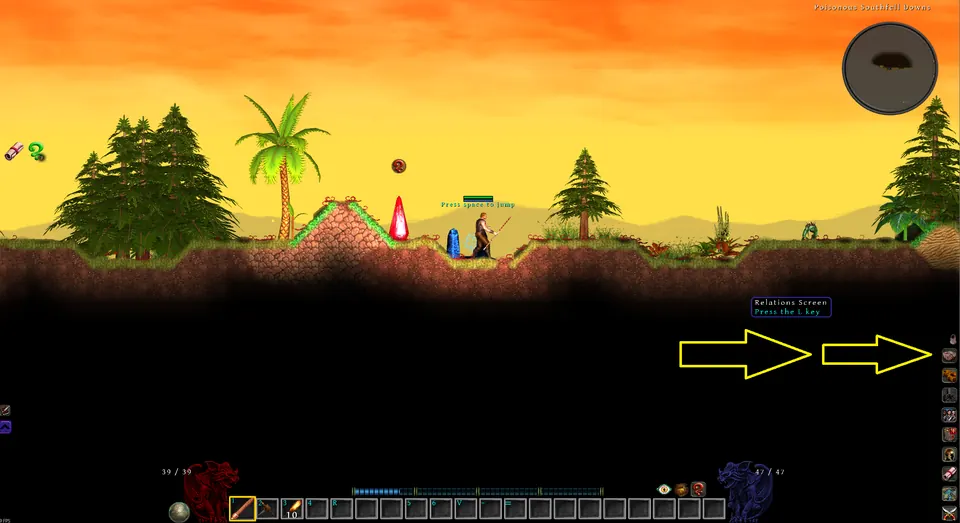
Each clan has its own page there. That page is where you pick up the quests the clan currently has available, and it is where you hand them back in as well, because clan work is not turned in at your Lifestone. Trade and agreements with that clan happen on the same page.
More Din's Champion guides
-
fixDin's Champion: Fix Multiplayer and Desync
How to fix Din's Champion multiplayer connection problems and desync, covering version checks, firewall settings, port forwarding and direct connect.
Published August 24, 2026